How the Crowgrid Task Tracker works
See how to organize tasks into lists, set priorities and due dates, manage recurring work, and track progress without extra project overhead.
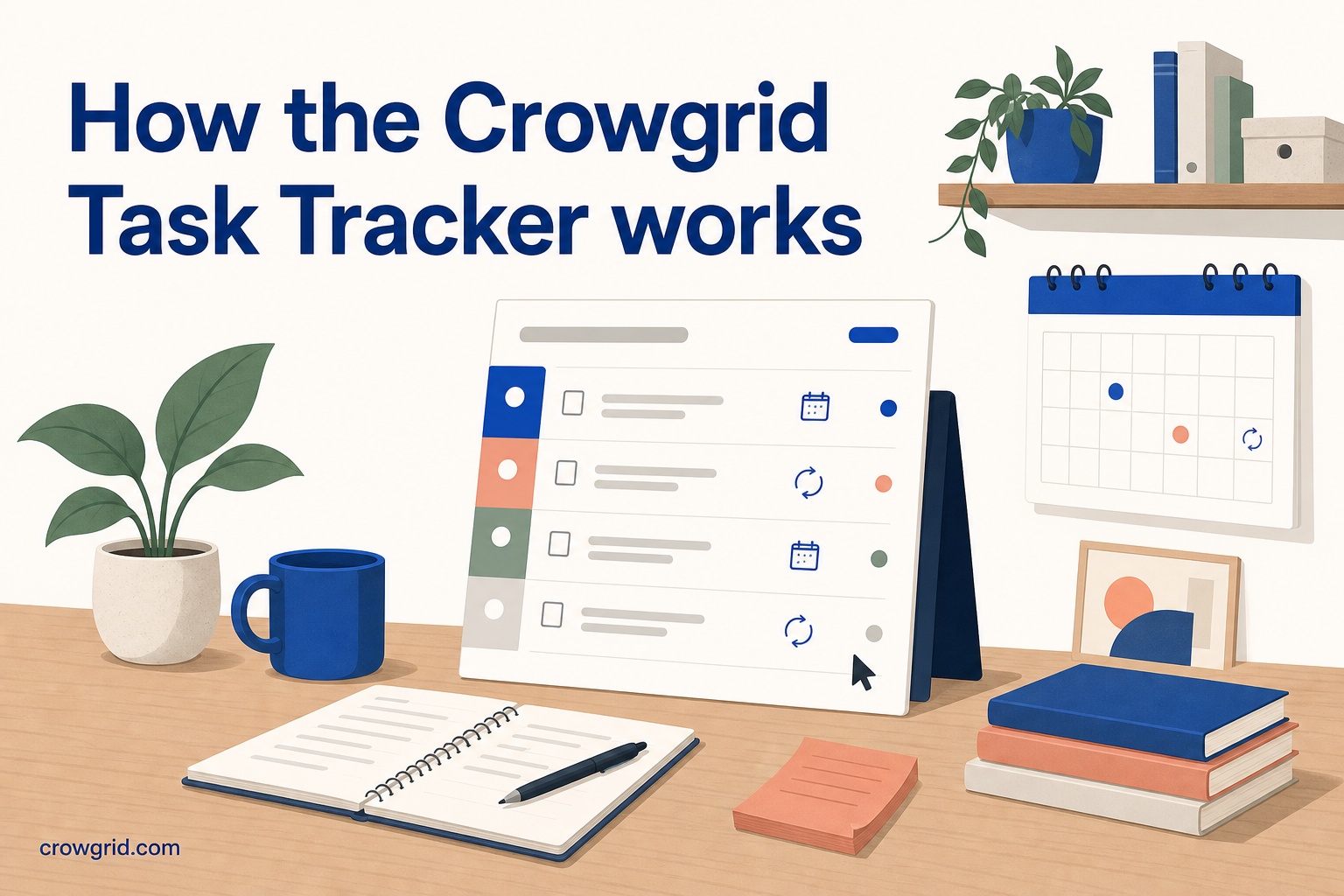
Task Tracker gives you a direct way to organize work without setting up a full project-management system. You can separate tasks by category, add due dates and priorities, manage recurring work, and follow progress in a list or board view.
A focused place for your tasks
Task Tracker is designed for work that needs more structure than a basic checklist but less overhead than a large project-management tool.
You can create separate task lists for projects, teams, departments, or personal contexts. Within each list, tasks can include a title, description, due date, priority, and status. That gives you enough detail to decide what needs attention without filling in fields you do not need.
The interface stays focused on the work itself. You can use list view when you want to scan tasks in order or boards when you prefer to see work grouped into stages.
Typical ways to organize your lists include:
- One list for each client or project
- Separate lists for work and personal tasks
- Lists for departments or areas of responsibility
- A dedicated list for recurring responsibilities
- Lists for different workflows or planning periods
Lists effectively act as categories, keeping unrelated tasks apart while making each group easy to find.
Step 1: Create a list
Start by creating a task list for the work you want to track. Give the list a clear name based on its project, team, department, or context.
For example, you might create lists called “Website updates,” “Finance,” or “Weekly operations.” A specific name makes it easier to know where a task belongs and reduces the need for one large, mixed backlog.
You can maintain multiple lists when your plan allows it. Free users can create one list, while Pro users can create unlimited lists. Keeping each list focused also makes filters and progress views more useful because you are looking at related work.
Once you have named the list, it is ready for tasks. There is no need to build a complex project structure first.
Step 2: Add tasks and useful details
Add each piece of work as a task. A task can have a title and description, along with a due date, priority, and status.
Use the title for the specific action. Add a description when someone needs context, instructions, or a clear definition of the expected result. You do not need to add extra detail to every task; simple items can remain simple.
Due dates help you place time-sensitive work. When a deadline passes, the overdue task is highlighted so it is easier to spot. Priorities provide another way to separate important work from items that can wait. You can assign low, medium, or high priority to each task.
Each task also has a status. The basic workflow is clear:
- To do for work that has not started
- In progress for active work
- Done for completed work
Task Tracker supports customizable statuses, so the stages can reflect the way your work progresses. You can also add tasks quickly with keyboard shortcuts and a minimal input form when you need to capture something without interrupting your current work.
Recurring tasks are useful for responsibilities that happen repeatedly. Keep regular work alongside one-off tasks instead of rebuilding the same checklist whenever it comes around.
Step 3: Track progress
After adding tasks, use the overview to see what is waiting, active, overdue, or complete. You can filter tasks by status, priority, or due date to narrow the list to the work that matters at that moment.
A status filter can show only active tasks. A priority filter can isolate high-priority work. Filtering by due date helps you check upcoming deadlines or find items that need immediate attention.
As work progresses, move tasks through their stages. This keeps the current state visible without requiring separate progress reports. Completed work remains clearly distinguished from tasks that still need action.
List view is useful when you want a compact overview and need to scan task details. Boards provide a more visual way to follow movement between stages. You can use whichever view fits the work you are doing.
Task Tracker works on desktop, tablet, and mobile devices, so you can check a deadline or update a status from different screen sizes.
Keeping the system manageable
A task tracker works best when its structure remains easy to understand. Create a new list when a group of tasks has a distinct purpose, owner, or workflow. Avoid creating separate lists when a priority or status filter would provide the same distinction.
Use due dates for real deadlines rather than as a general marker of importance. If a task matters but does not have a fixed deadline, priority may be the clearer signal.
It also helps to keep statuses practical. Every stage should describe a meaningful point in the work. If two statuses do not change what happens next, you may not need both.
A simple routine can keep your lists current:
- Add new work as soon as it becomes actionable
- Check overdue and high-priority tasks first
- Move active tasks to the correct status
- Mark finished work as done
- Review recurring responsibilities regularly
This approach gives you a reliable view of the work without turning task maintenance into a separate project.
Frequently asked questions
How many tasks and lists can I create?
Free users can create up to 30 tasks in one list. Pro users can create unlimited tasks across unlimited lists. Separate lists can be used for different projects, teams, departments, or other contexts.
Can I sort work by deadline and priority?
Yes. Each task can have a due date and a low, medium, or high priority. You can filter or sort by priority, and overdue tasks are highlighted when their due dates have passed.
Is Task Tracker available on mobile devices?
Yes. Task Tracker works on desktop, tablet, and mobile devices. You can view tasks and keep their statuses current across supported screen sizes.
If you want categories, deadlines, priorities, and progress tracking without a large project setup, read more about Task Tracker.