How Employee Training Tracker Works: From Training Plans to Completion
See how Crowgrid Employee Training Tracker helps HR teams build employee and training databases, schedule sessions, register attendees, and track results.
Managing employee training sounds simple until the details start piling up.
You need to know who works in which department. You need a list of required trainings. You need training dates, expected attendees, registrations, participation status, ratings, certificates, old records, budgets, hours, and reporting.
For many HR teams and small businesses, this usually ends in one of two places:
- a spreadsheet that keeps getting wider, messier, and easier to break
- a large HR or LMS system that does far more than you actually need
Crowgrid Employee Training Tracker sits in the middle.
It is not trying to be a giant HR suite. It is a focused web app for one practical job: helping you plan, schedule, register, and track employee training in a clean workflow.
Open Employee Training Tracker
The Core Workflow
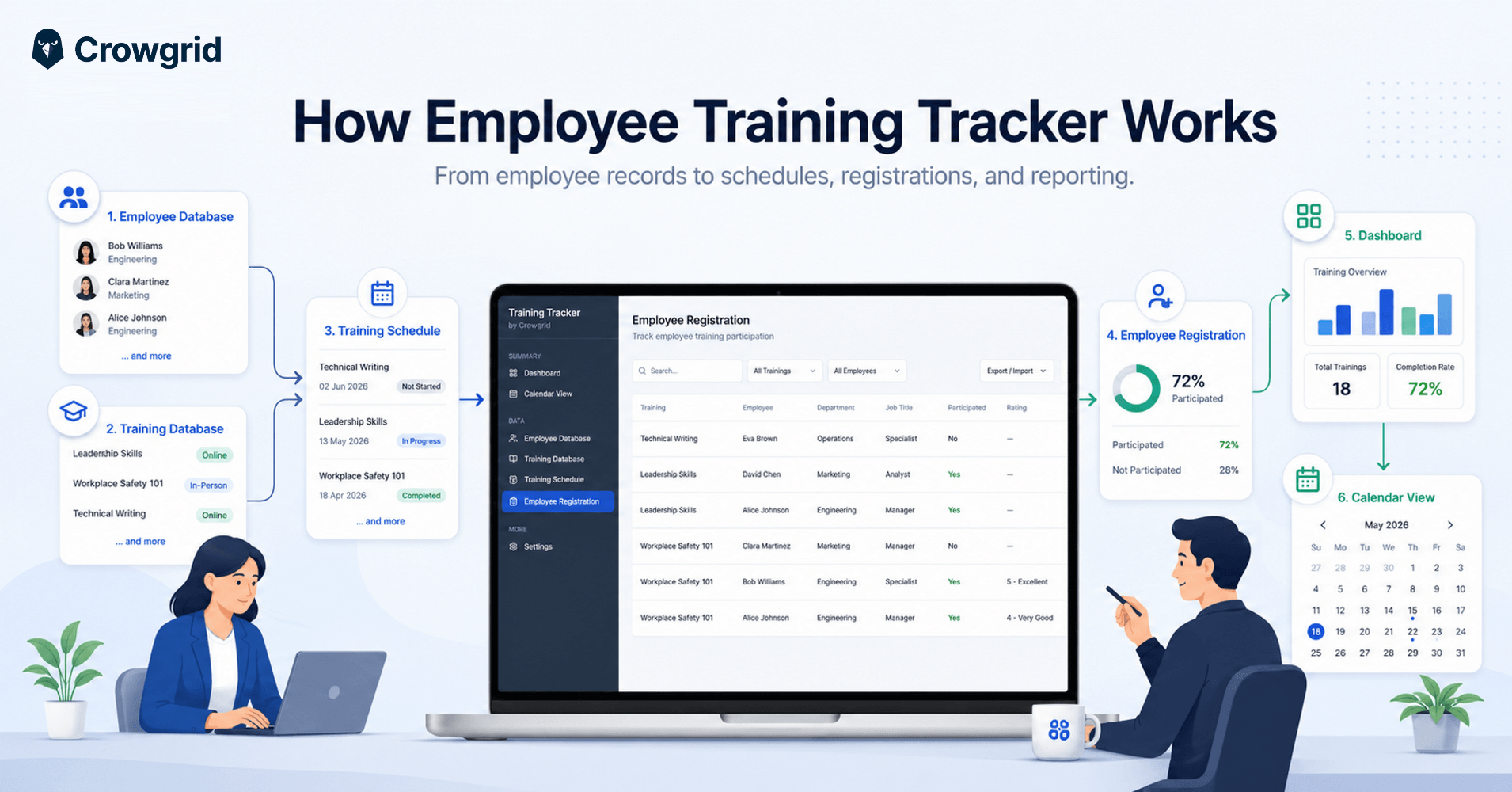
At a high level, the app follows a simple training management flow:
- Create your workspace
- Build your Employee Database
- Build your Training Database
- Schedule training sessions
- Register employees to scheduled trainings
- Track results in the Dashboard and Calendar View
That structure is important.
Instead of entering disconnected rows into a spreadsheet, you build a small internal training system. Employees are stored once. Trainings are stored once. Scheduled sessions connect the two. Registrations then show who participated, who missed it, and how the training performed.
Let’s go through the flow.
Step 1: Start With a Workspace
A workspace is where your training data lives.
You can think of it like a separate training file for a company, branch, team, client, or training program. If you manage training for more than one unit, you do not have to mix everything in one flat table.
Inside a workspace, the main sections are:
- Employee Database
- Training Database
- Training Schedule
- Employee Registration
- Dashboard
- Calendar View
- Settings
This keeps the app understandable. You always know where each type of work belongs.
Step 2: Build Your Employee Database
The Employee Database is the foundation of the system.
This is where you enter the people who may need to attend training sessions.
Each employee can include basic information such as:
- employee name
- department
- job title
- phone
- active or archived status
- certificates or related employee documents
The goal is not to turn employee data entry into a heavy HR administration task. You only add the information that helps you organize training.
For example, department and job title are useful because later you can filter, analyze, and understand training participation by team or role.
This is already better than a spreadsheet in a very basic way: employee information is stored once and reused throughout the app.
You do not need to copy the same person into five different sheets.
Step 3: Build Your Training Database
After employees, the next step is defining the trainings themselves.
The Training Database is where you create the reusable list of training programs your organization runs.
A training record can include information such as:
- training name
- category
- training type
- duration
- active or archived status
For example, you might add trainings like:
- Workplace Safety 101
- Leadership Skills
- Technical Writing
- Compliance Training
- Onboarding Training
This database gives structure to your training process.
Instead of typing “Workplace Safety 101” again and again in different places, you define it once and use it when creating schedules.
It also makes reporting cleaner. If training names are entered randomly in a spreadsheet, you often end up with small variations like:
- Workplace Safety
- Workplace Safety 101
- Safety Training
- Workplace safety training
Those look similar to a person, but they are different values to a system. A training database avoids that mess.
Step 4: Schedule Training Sessions
Once your employees and training definitions are ready, you can start planning actual sessions.
The Training Schedule section is where you decide when a training will happen.
A schedule connects a training definition to real dates.
For example:
- Training: Leadership Skills
- Start date: May 13
- End date: May 28
- Expected trainees: 8
- Cost: TRY 4,000
- Status: In Progress
This is where the app starts becoming more useful than a static training list.
You are no longer just saying “we have a leadership training.” You are saying:
- when it happens
- how long it runs
- how many people are expected
- how much it costs
- whether it is not started, in progress, completed, or canceled
The schedule becomes the operational center of your training process.
Step 5: Register Employees to Trainings
After a training is scheduled, you can register employees to that training.
The Employee Registration section answers the practical question HR teams deal with all the time:
Who was supposed to attend, who actually participated, and what was the result?
A registration connects one employee to one scheduled training session.
You can track details such as:
- selected training session
- selected employee
- department and job title
- whether the employee participated
- training rating, if applicable
This is the point where training tracking becomes much more reliable.
In a spreadsheet, the schedule and participation records often get mixed together. You may have one sheet for planned training, another for attendees, and another for completion. Someone has to keep them aligned manually.
In Employee Training Tracker, the logic is cleaner:
- employees come from the Employee Database
- trainings come from the Training Database
- scheduled sessions come from the Training Schedule
- participation is tracked in Employee Registration
Each part has a job.
Step 6: Monitor Everything in the Dashboard
Once registrations start coming in, the Dashboard gives you the overview.
The Dashboard helps you see training activity at a glance:
- total number of trainings
- average training rating
- total training hours
- total training budget
- training status breakdown
- training types
- duration progress
- budget progress
This is one of the main reasons to move away from spreadsheet-based training tracking.
A spreadsheet can store data, but it usually does not give you a clean operational view unless someone builds and maintains formulas, pivot tables, charts, and formatting rules.
Here, the reporting layer is part of the tool.
If you update training schedules or employee registrations, the Dashboard reflects the current state of your training data.
Step 7: Use Calendar View for Date-Based Visibility
Training is naturally time-based.
The Calendar View gives you a month-by-month view of scheduled training sessions.
This is useful when you want to answer questions like:
- What trainings are scheduled this month?
- Are too many sessions packed into the same week?
- Which trainings are still coming up?
- What happened last month?
- Are there gaps in the training calendar?
You can view training activity by year and month, and you can choose whether weekends should be shown.
For teams that manage recurring employee training, compliance sessions, onboarding, or internal development programs, this calendar layer makes the schedule easier to understand visually.
Settings: Make the Tracker Fit Your Process
Every organization tracks training a little differently.
That is why the app includes configurable settings.
You can adjust things like:
- employee departments
- job titles
- training categories
- training types
- rating scale
- regional settings
- data settings
This matters because training tracking is rarely identical from one company to another.
A manufacturing company may care heavily about safety and compliance training. A consulting company may care more about onboarding, leadership, and skill development. A small business may just want a clean way to see what has been completed.
The tracker should adapt to your process without becoming complicated.
Archive Old Records and Keep Certificates Organized
Training data does not stay current forever.
Employees leave. Old training sessions become historical records. Certificates need to be stored or referenced later.
Employee Training Tracker supports that reality by allowing old employee records and previous training data to be archived instead of constantly cluttering the active workspace.
You can also attach certificates to employee records, which is especially useful for compliance-heavy training processes.
This keeps the active workspace clean while still preserving the training history you may need later.
Invite Others to Help Manage Training
Training management is often not a one-person job.
HR may own the process, but managers, coordinators, or operations staff may also need to help maintain records.
Employee Training Tracker includes workspace sharing, so you can invite other people by email.
Members can help view and manage employees, trainings, schedules, and registrations inside the workspace.
That is a major advantage over passing around spreadsheet files.
With spreadsheet-based tracking, collaboration usually creates version problems:
- Which file is the latest one?
- Did someone overwrite the formula?
- Did two people edit different copies?
- Where is the updated attendance list?
A browser-based workspace avoids that file chaos.
Works in the Browser, Across Devices
Because Employee Training Tracker is a web app, you can use it directly in the browser.
That means your training data is not locked inside a local spreadsheet file on one computer.
You can work from a desktop, laptop, tablet, or phone. The main benefit is not that every screen is meant for deep data entry on a phone. The benefit is access.
You can check a training schedule, review a dashboard, or confirm registration information without needing to find the latest Excel file.
For HR teams and small business owners, that is often enough to remove a lot of friction.
Why Use Employee Training Tracker Instead of Excel?
Excel is flexible. That is exactly why many teams start there.
But as training data grows, the same flexibility becomes a problem.
Common issues include:
- repeated employee names across multiple sheets
- inconsistent training names
- broken formulas
- unclear status tracking
- no clean registration flow
- charts that need manual maintenance
- old records mixed with active ones
- difficult collaboration
- no clear separation between employees, trainings, schedules, and results
Employee Training Tracker keeps the workflow structured.
You do not have to invent the system from scratch. The app already knows the basic logic of training management: Employees + Trainings + Schedules + Registrations = Training Reports
That is the core idea.
Why Use It Instead of Bloated HR Software?
Large HR platforms can be powerful, but they often come with a cost: setup time, training time, configuration work, and features you may not need.
If all you want is a focused employee training tracker, a full HR suite can feel excessive.
Crowgrid Employee Training Tracker is designed for teams that want a practical middle ground:
- more structured than a spreadsheet
- lighter than a full HR system
- focused only on employee training management
- easy enough to understand without a long onboarding process
- useful for HR teams, training coordinators, and small business owners
It is not trying to manage every part of HR.
It is trying to make employee training tracking easier.
A Simple Example
Imagine you need to run a workplace safety training.
In a spreadsheet, you might create a new row, copy employee names from another sheet, enter dates manually, track attendance in a separate column, and then build a report later.
In Employee Training Tracker, the flow is cleaner:
- Add employees to the Employee Database.
- Add “Workplace Safety 101” to the Training Database.
- Create a scheduled session with start and end dates.
- Register employees to that session.
- Mark whether they participated.
- Add a rating if needed.
- Review the result in the Dashboard and Calendar.
That is the difference.
The app does not just store training data. It gives the data a workflow.
Final Thoughts
Employee training tracking should not require a giant software implementation.
And it should not live forever in a fragile spreadsheet either.
Crowgrid Employee Training Tracker gives HR teams and small businesses a focused way to manage the full training flow:
- employee records
- training definitions
- scheduled sessions
- employee registrations
- participation tracking
- ratings
- certificates
- archives
- dashboard reporting
- calendar visibility
- workspace collaboration
If you want a cleaner way to manage employee training without spreadsheet chaos or bloated HR software, this is exactly what the tool is built for.