How Simple CRM Works for Small Teams
See how Simple CRM helps a small team organize contacts, tasks, process records, pipeline stages, and sales reporting without enterprise complexity.
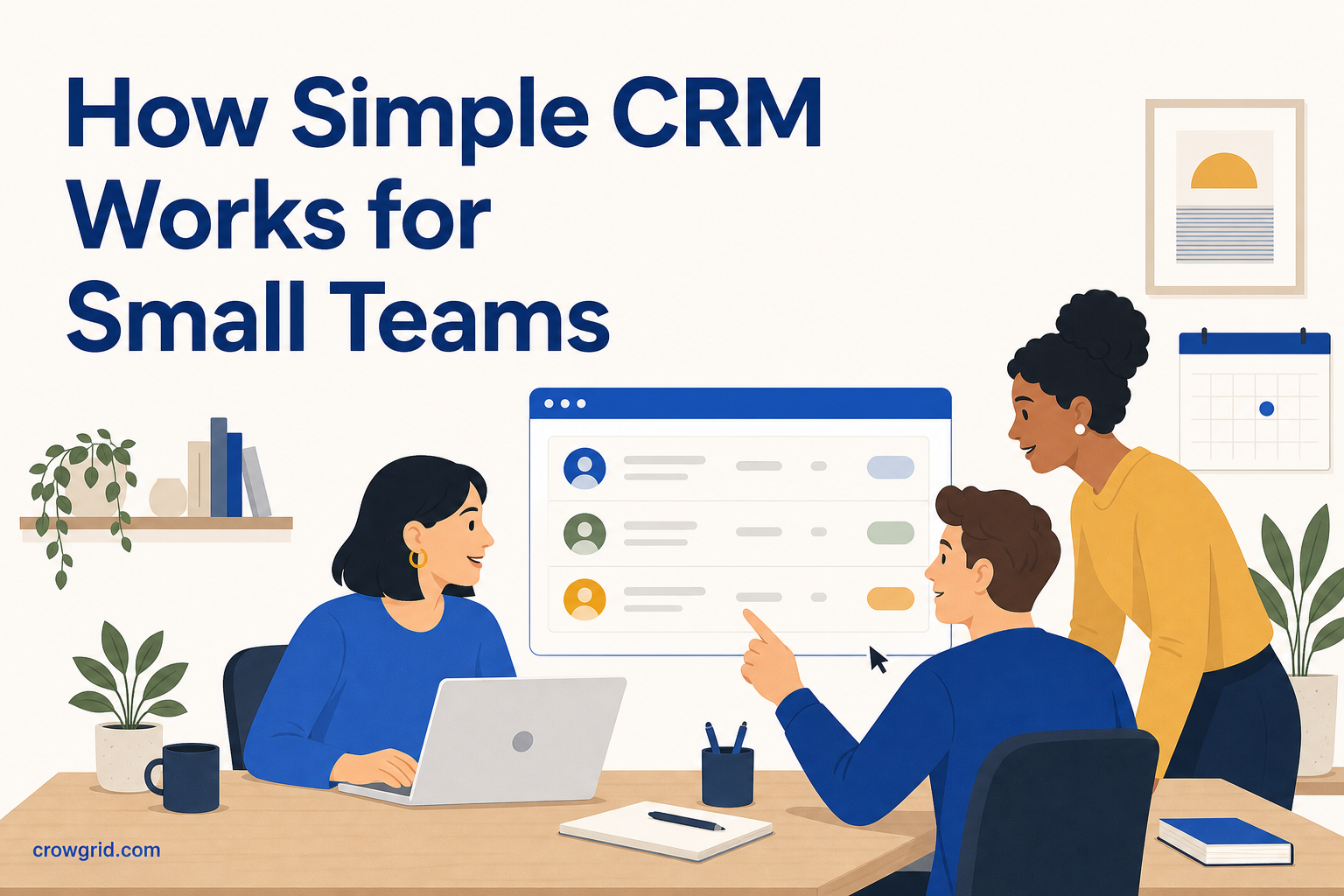
A CRM should help you understand who you are talking to, what needs to happen next, and where each deal stands. It should not require weeks of setup or a specialist to maintain it. Simple CRM gives a small team the essential parts of customer and sales tracking in a focused web app.
You can store contacts, define tasks, record sales activity, and follow work through pipeline stages that match your process. Calendar views and reports give you a wider view when you need it.
A CRM built around three connected records
Simple CRM organizes your work into customers, tasks, and process records. Each type of record answers a different question:
- Customers: Who are you working with?
- Tasks: What opportunity or piece of work are you tracking?
- Process records: What happened, when did it happen, and what stage is the work in?
These records connect to one another. A customer can have multiple tasks, and each task can contain dated process records. This structure gives you useful history without asking you to manage a large enterprise sales system.
Step 1: Build your address book
Start by adding the people and companies your team works with. Each customer record can include a company name, contact person, email address, phone number, lead status, and lead source.
Lead status helps you separate different types of contacts, while lead source shows where an inquiry or opportunity came from. You can search and filter the address book when you need to find a specific customer or narrow the list.
The address book becomes the foundation for the rest of the CRM. Tasks are linked to these customers, so your team can move from a contact record to the related work without relying on separate notes or spreadsheets.
Step 2: Define tasks and opportunities
Once a customer is in the address book, create a task for the opportunity or work you want to track. A task stays linked to the customer and includes an importance level, a status, and a detailed description.
The description gives you space to record the context your team needs. You might use it to describe the customer’s request, the expected outcome, or the key points discussed so far. Importance levels help distinguish routine work from items that need closer attention, while status tracking shows whether a task remains open or has been closed.
A customer can have more than one task. This lets you keep separate opportunities or pieces of work organized under the same contact instead of combining everything into one long record.
Step 3: Log process records
Process records capture activity against a task. Each record has a date and can include a pipeline stage, an assigned salesman, and notes about what happened.
For example, after sending a proposal, you can add a process record with the proposal stage, assign the relevant team member, and note what was sent. After the next conversation, you can add another dated record for the new stage. Over time, these entries form a practical history of the opportunity.
Because pipeline progress comes from recorded activity, your team can see more than the current task status. You can review how the work moved between stages, who handled it, and how long it spent at different points in the process.
These records also feed the calendar and reporting views. Keeping them current gives the rest of the CRM useful information to work with.
Match the pipeline to your process
Simple CRM does not force every team into the same sales stages. You can define and reorder stages in Settings to reflect how your work actually moves.
A typical pipeline might include prospecting, proposal, negotiation, and closed. Your team can use different names or add other stages where needed. The same applies to lead statuses and importance levels, which can also be configured for your business process.
This is useful when a generic CRM label does not describe the way your team works. You keep the structure of a pipeline without adopting a larger enterprise system’s terminology.
See activity on the calendar
The calendar view displays process records by date. You can filter the calendar by pipeline stage and salesman, making it easier to focus on a particular part of the process or one team member’s activity.
Because the calendar is based on process records, it gives you a chronological view of the work already logged. You can use it alongside task statuses and customer records when checking recent activity or preparing for follow-ups.
Review performance and conversion data
Reports turn your CRM records into a broader view of team activity. Performance reports compare open and closed tasks for each salesman using visual bar charts. Date-range filters let you focus on the period you want to review.
Conversion analytics provide several other ways to examine the process:
- Distribution of work across pipeline stages
- Average number of days spent in each stage
- Breakdown of customers or opportunities by lead source
- Number of tasks associated with each customer
These views can help you spot work that remains in one stage for a long time, compare workloads, or see which lead sources appear most often. The reports depend on the records your team enters, so consistent stage and assignment choices produce a clearer picture.
Configure the CRM for your team
Settings let you manage pipeline stages, salesmen, importance levels, and lead statuses. You can add team members and assign them to individual process records, which also allows performance reports to break down activity by salesman.
It is worth agreeing on a small set of shared labels before adding large numbers of records. Clear stage names and status definitions make filtering and reporting easier for everyone. You can adjust the settings later as your process changes.
A practical routine for keeping records current
Simple CRM works best when updates are tied to real activity. Add a customer when a new contact appears, create a task when there is an opportunity to track, and add a process record after each meaningful step.
A basic routine could look like this:
- Search for the customer before creating a new record.
- Add or update the task with its importance and current status.
- Log the latest activity with a date, stage, salesman, and notes.
- Review the calendar for recent records and follow-up work.
- Check reports periodically to understand open tasks and stage movement.
This keeps the CRM useful without turning data entry into a separate project.
Frequently asked questions
Is Simple CRM free?
Yes. The free tier includes unlimited customers and tasks, with up to 50 process records. The Pro tier provides unlimited process records. No specific Pro price is stated here.
Can you change the pipeline stages?
Yes. Go to Settings to add, edit, or reorder pipeline stages. You can use stages such as prospecting, proposal, negotiation, and closed, or define a sequence that fits your own process.
What happens when you delete a customer?
Tasks linked to that customer are preserved and become Unassigned. This prevents the related task information from being removed unexpectedly when a customer record is deleted.
If you want contact, task, and pipeline tracking without a full enterprise CRM, see Simple CRM.