A Practical 9-Box Talent Review Template
Use this repeatable workflow to prepare employee data, run a 9-box talent review, record decisions, and track follow-up actions.
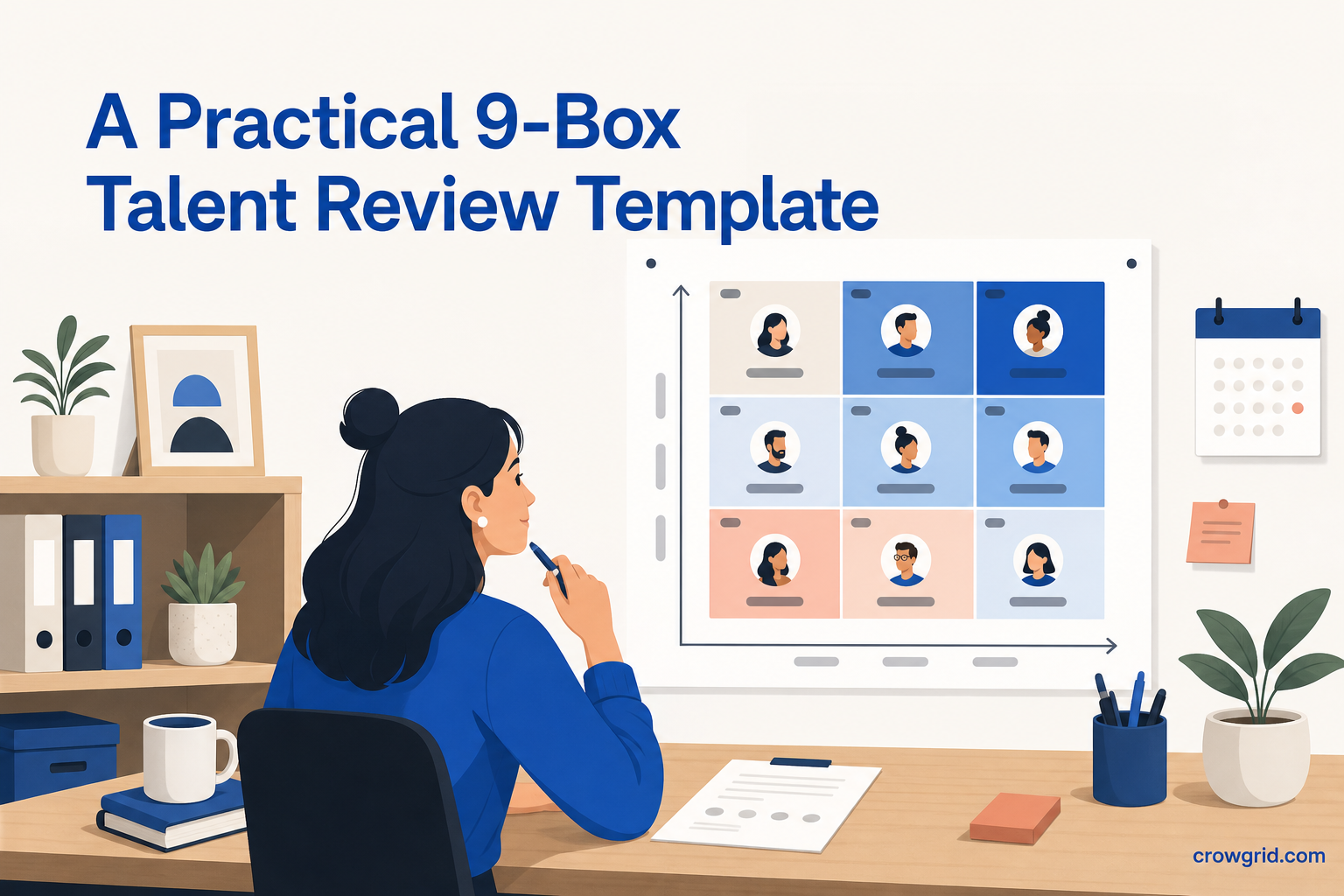
A useful 9-box talent review starts before anyone enters the meeting. You need consistent employee data, agreed evaluation criteria, a focused agenda, and a clear way to record what happens next. This template takes you from preparation through stakeholder sharing and follow-up.
Set up the review framework
A 9-box grid plots employees against two axes: performance and potential. Before adding people, agree on what those terms mean for your organization.
Define the evidence managers should consider, the time period covered, and the labels used on each axis. For example, decide whether performance reflects the latest review cycle or a longer period. Potential also needs a shared definition so managers are not applying different standards.
9 Box Grid Maker lets you adjust axes, labels, and the grid structure to fit your evaluation model. You can begin with a ready-to-use template or create a grid from scratch.
Record these setup decisions:
- Review scope and employee group
- Review period
- Definitions for performance and potential
- Axis labels and scoring scale
- Required evidence
- Meeting participants and access permissions
- Date for completing follow-up actions
Prepare the employee inputs
Collect the basic information needed to identify each employee and support a useful discussion. Keep the input focused. A talent review becomes harder to manage when each person has a different set of supporting data.
Your input sheet might include:
- Employee name
- Role, team, or department
- Manager
- Current performance assessment
- Initial potential assessment
- Relevant context or notes
- Proposed development action
Check the data before the meeting. Resolve missing names, inconsistent labels, and duplicate entries. If managers are submitting initial assessments, give them the agreed definitions and a deadline. This makes the live review about calibration and decisions rather than data cleanup.
Step 1: Add employees to the grid
Add employees manually or import them from a spreadsheet. Include enough basic information for participants to identify each person without turning the grid into a full employee record.
If you are reviewing several teams, use a consistent naming and labeling approach. That makes the combined view easier to interpret later. Team access can be used to collaborate with managers and HR while controlling who can see the review.
At the end of this step, confirm that everyone in scope appears once and that each record belongs in the current review. Do not begin scoring until the participant list is stable.
Step 2: Evaluate performance and potential
Score each employee on both axes. As scores are added, employees appear in the corresponding grid boxes, giving the group a visual basis for discussion.
Use the same sequence for each person:
- State the proposed performance rating and supporting evidence.
- State the proposed potential rating and the reasoning behind it.
- Invite relevant context from other participants.
- Agree on the final placement.
- Record important notes or unresolved questions.
The purpose is not simply to fill every box. Look for consistent use of the criteria. If two employees with similar evidence receive different placements, pause and compare the reasoning. Notes can preserve context without crowding the main grid.
Step 3: Analyze the grid and decide actions
Once all employees are placed, step back from individual discussions and review the full grid. Look for patterns, concentrations, and placements that need another check.
Ask practical questions:
- Are ratings applied consistently across teams?
- Are any boxes unusually crowded or empty?
- Which employees need a specific development action?
- Which placements require more evidence?
- Who owns each follow-up, and when is it due?
Add notes and action items to each relevant person. These might cover a follow-up conversation, a development plan, or a request for more information. The tool supports tracking action items and follow-ups so decisions do not remain only in meeting notes.
You can then export the review as a PDF or image, or share it by link with the appropriate stakeholders.
Use a focused talent review agenda
A clear agenda keeps the session moving while leaving room for evidence-based discussion. Adjust the timing to match the number of employees and participants.
A reusable agenda can follow this order:
- Opening: Confirm the scope, definitions, and expected decisions.
- Criteria check: Review the performance and potential axes.
- Employee calibration: Discuss each proposed placement and agree on changes.
- Grid-level review: Look for patterns and inconsistent scoring.
- Action planning: Assign owners and target dates for follow-ups.
- Close: Confirm what will be shared, with whom, and in which format.
Avoid spending the opening part of the meeting redefining the model. Settle those questions during preparation and bring the agreed criteria into the session.
Write notes that support follow-up
Useful notes explain a decision without becoming a transcript. Record the evidence that affected placement, any disagreement that needs resolution, and the next action.
A simple note format is:
- Decision: Final grid placement
- Reason: Short summary of the evidence
- Action: Specific next step
- Owner: Person responsible
- Due date: Agreed completion date
Review action items after the meeting and update them as work is completed. For unresolved placements, note what information is missing and who will provide it. This creates a clear path to a final decision.
Share the review with the right people
Before sharing, check that the grid, notes, and actions are ready for the intended audience. 9 Box Grid Maker supports team access with visibility controls, along with PDF, image, and link sharing.
Choose the format based on the task. An image can support a presentation, a PDF can provide a fixed report, and a shared link can give stakeholders access to the grid. Apply the same care to access decisions that you use for the review itself.
Frequently asked questions
Can I try 9 Box Grid Maker before subscribing?
Yes. Click Open App to get started. You can create up to three grids for free, and no credit card is required.
Can I use the grid on a phone or tablet?
Yes. The app is responsive and works on desktop, tablet, and mobile devices. You can prepare or review a grid from the device available to you.
Can I change the colors and labels?
Pro users can customize colors, labels, and the entire grid structure. This lets you adapt the grid to the terminology and evaluation model used by your organization.
Use this workflow as a repeatable starting point for your next review, then create your grid with 9 Box Grid Maker.